How to setup Sub-domain in digital Ocean and Activate SSL
About the Author:
3 mins read
[vc_row][vc_column][vc_column_text]While using a cloud server, It always very difficult to set up a domain or sub-domain in the digital ocean or AWS & activate SSL. In given few steps I will explain to you how easily you can set up a sub-domain and activate free SSL.
Setup Sub – Domain in Digital Ocean
- Login to Digital Ocean
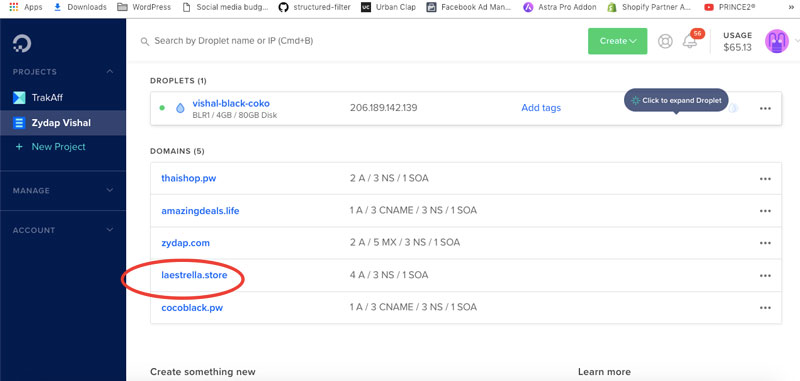
- Click on the domain – e.g I want to make nexgi.laestrella.store – so I m click on laestrella.store
As marked in red.

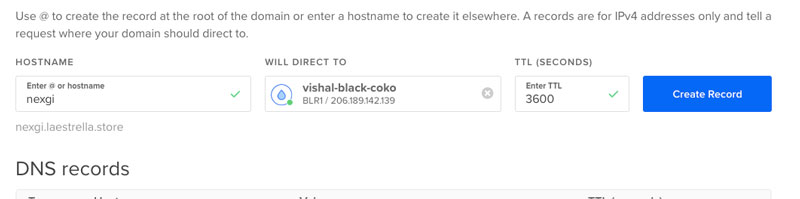
- Then Add two records as given screenshot
First nexgi second www.nexgi (only write bold text) and point to your droplet. (see below)
- Now your subdomain is pointing to your droplet but – if you will hit/open it. It will open the default or main domain. So now you have to tell which folder will be pointed when someone hit this sub-domain using a virtual host.
- Access your terminal/or GUI method & create a folder where you want to point this subdomain like I created nexgi.laestrella.store under /var/www/
like I created /var/www/nexgi.laestrella.store
- Make a Sample file in this domain with the name of index.html with below code – It will help to confirm your sub-domain is pointing right directory.
<h1>It’s pointing to https://nexgi.laestrella.store</h1>
- Now you have to make a config file in apache at below location
/etc/apache2/sites-available/nexgi.laestrella.store.conf Please note: this location may differ as per your installation path. Paste the following codes & change the bold text as per your domain & pointing directory name.<VirtualHost *:80> ServerAdmin webmaster@nexgi.laestrella.store ServerName nexgi.laestrella.store ServerAlias www.nexgi.laestrella.store DocumentRoot /var/www/nexgi.laestrella.store ErrorLog ${APACHE_LOG_DIR}/error.log CustomLog ${APACHE_LOG_DIR}/access.log combined </VirtualHost> - Now, this site is available but not enabled or activated to work.
To enable it – you need to press a small command from terminal & change the bold sub-domain as per yours.sudo a2ensite nexgi.laestrella.store
Then reload your server configuration – by hitting
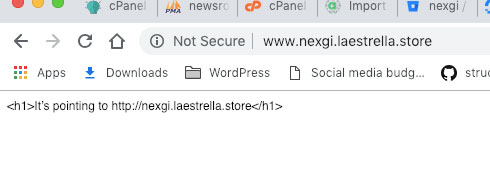
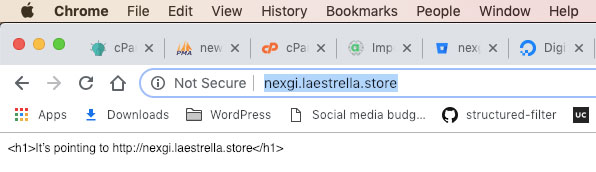
service apache2 reload - Now you have enabled successfully – Just you need to reload your server configuration. Navigate your sub – domain – like in my case –
With WWW https://www.nexgi.laestrella.store/
Don’t forget to test without WWW
like in my case https://nexgi.laestrella.store/

Install SSL certificate for free in digital ocean using letsencrypt ubuntu
[/vc_column_text][/vc_column][/vc_row]
Tags: activate ssl, digital ocean, ssl, sub domain

Join to Build Growth
Build differently. Explore our platform and services for the AI era.
Innovate with purpose. Discover how our advanced AI platform and tailored services empower your business to thrive in the rapidly evolving AI landscape, driving smarter decisions and transformative growth.
Get in touch